Documentation Index
Fetch the complete documentation index at: https://docs.cadcamfun.xyz/llms.txt
Use this file to discover all available pages before exploring further.
Project Management
Effective project management is crucial for organizing your work and collaborating with other users. This section explores the available features for managing projects, drawings, and components in the CAD/CAM application.
Project Management Overview
Hierarchical Structure
Hierarchical Structure
- Projects: Main container grouping drawings, components, and related files
- Drawings: Individual CAD models within a project
- Components: Reusable parts that can be shared between projects
- Related files: Documentation, images, notes, and other support materials
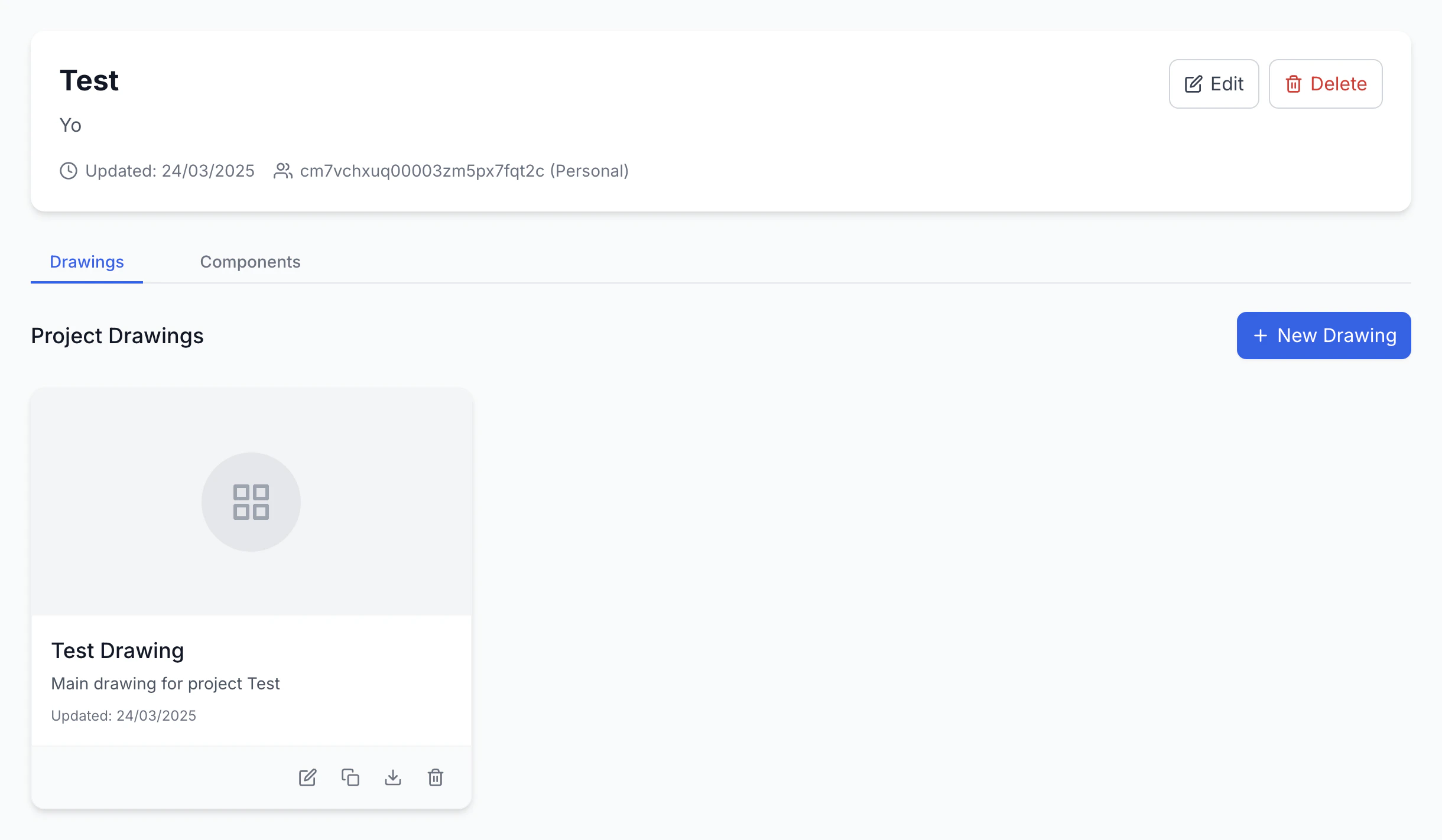
Project Dashboard
Project Dashboard
The project dashboard provides an overview of all your projects:
- Grid/List view: Choose your preferred visualization mode
- Filters and sorting: Organize projects by date, name, status, etc.
- Advanced search: Quickly find specific projects with text search
- Statistics and metrics: View data on recent activity and progress
Creating and Configuring Projects
Project Settings
- Basic information
- Collaborators and permissions
- Technical settings
- Templates
- External integrations
Internal Organization
- Folder structure
- Categorization
- Version control
- Workflow states
Drawing and Model Management
Drawing Creation
Drawing Creation
- New drawing: Create from scratch in CAD Editor
- From template: Use predefined or custom templates
- From component: Derive from existing library component
- Import: Import from external CAD files
Drawing Organization
Drawing Organization
- Thumbnail/list view: Choose how to display drawings
- Sorting: Organize by name, date, type, etc.
- Filters: Filter by specific properties
- Grouping: Group related drawings
Version Control
Version Management
- Track changes with version numbers
- Compare different versions
- Restore previous versions
- Add version notes
Drawing Relations
- Parent-child relationships
- Reference links
- Dependency management
- Change propagation control
Component Management
Component Library
Component Library
Features for managing reusable components:
- Browse and navigate: Explore component library
- Categorization: Organize in logical categories
- Search: Find components with advanced search
- Filters: Filter by technical properties
Component Creation
Component Creation
Methods to create components:
- From existing model: Convert drawing to reusable component
- From scratch: Create new in CAD Editor
- Parameterization: Define variable parameters
- Metadata: Add technical and descriptive information
Component Usage
Documentation Management
Document Types
- Technical specifications
- Construction drawings
- Assembly instructions
- Operating manuals
- Test reports
Document Creation
- Use predefined templates
- Create in integrated editor
- Auto-generate from models
- Create BOMs automatically
Document Organization
Project Links
Project Links
- Direct association with projects
- Dynamic updates with changes
- Cross-references between documents
- Version coordination
Distribution
Distribution
- Export in various formats
- Online publishing
- Access control
- Historical archiving
Production Workflow Integration
Production Planning
- Time estimation from CAM simulations
- Material requirements
- Resource allocation
- Schedule optimization
Production Transfer
- Complete production packages
- Direct CNC program transfer
- Pre-production verification
- Shop floor documentation
Progress Tracking
Data Management and Backup
Backup System
Backup System
- Automatic backup: Configure periodic backups
- Cloud sync: Sync with cloud storage services
- Local backup: Store on external or network devices
- Versioning: Maintain multiple historical versions
- Differential backup: Save only changes
Data Security
Data Security
- Strong authentication: Use robust passwords and 2FA
- Permission management: Configure access rights
- Data encryption: Protect sensitive information
- Secure access: Protected remote access
- Physical security: Storage device protection
Best Practices
Organization
- Use consistent naming conventions
- Create standard folder structures
- Use complete metadata
- Create project templates
Collaboration
- Document workflows clearly
- Use comments effectively
- Schedule regular reviews
- Maintain continuous training
Una gestione progetti efficace è fondamentale per sfruttare al massimo le capacità dell’applicazione CAD/CAM. Nella prossima sezione, esploreremo la gestione di materiali e utensili, elementi cruciali per la corretta programmazione delle lavorazioni CNC.